


A client emails at 4:40 on a Thursday. The report will be late, and could the deadline move from Friday to next Wednesday? You have a saved template called “Deadline change.” You open it. It says “Hi [Name], thank you for reaching out. Unfortunately we will need to adjust the timeline for [Project].” Polite, tidy, and wrong in every detail that matters. It doesn’t know the client is nervous about a board meeting, or why the report is late. It sounds like a stranger wrote it.
So you rewrite most of it. The template saved you the first line.
If you already keep saved replies in Gmail or Outlook, you have probably felt this. Templates are great until the email in front of you isn’t the email you saved. This post compares them with Writemail.ai, an AI email writer, on one question only: which one gets you to a sent email with less of your time
The short answer
Writemail.ai saves more time on most of the emails in a normal inbox. Saved templates win on a narrow slice, the messages that must read the same word for word every time.
Anything that depends on who wrote to you, what they actually said, or how the message should sound goes faster with an AI writer. The reason is simple. A template can’t read the email it is answering.
Think about your last twenty sent emails. How many were identical to something you had sent before? For most people it’s two or three. The other seventeen needed a name, a detail, a decision or a change of mood. That’s the territory this post is about.
What a traditional template is, and where it still wins
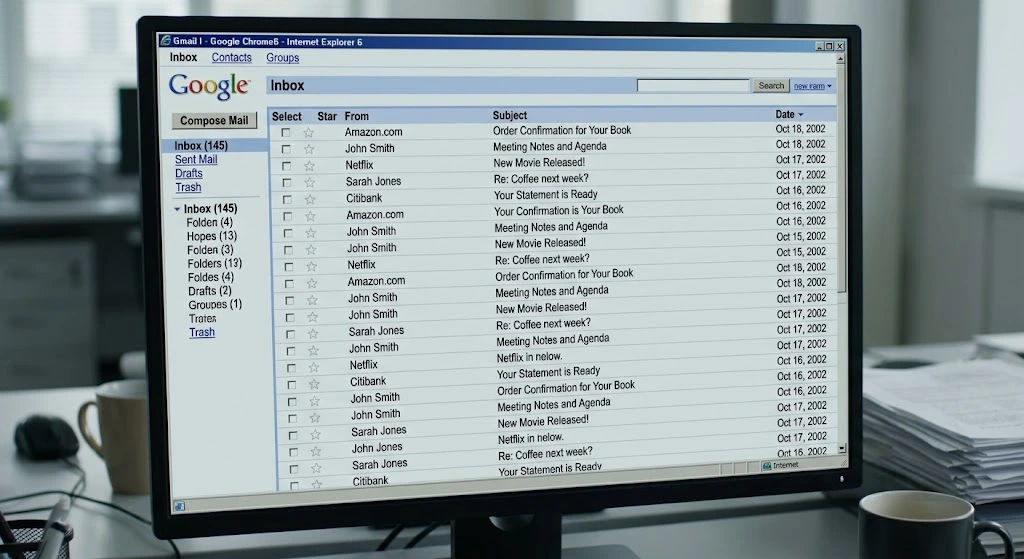
Gmail’s help page describes the idea well: “If you have a message that includes information that doesn’t change frequently, you can save the message as a template in Gmail and reuse it.” You write the message once, store it, and insert it later. Outlook email templates work on the same principle. Saved text goes in, and you edit it.
Two details from Google’s own instructions are worth noticing. Templates work only from Gmail on a computer, so your phone is out. And after you choose “Insert template,” you still “Compose the rest of your message.” The template is a starting point. Everything after it is your job.
That said, templates earn their place in a few spots:
- The refund policy paragraph your legal team approved
- An out-of-office note
- The “we received your application” message that goes out the same way every time
For these, an AI is worse, not better. You don’t want a fresh phrasing of a legal sentence each time you send it. Fixed wording is a feature. If you search for email templates for Gmail, you will find endless lists of messages like these, and for this kind of email they do the job.
Nobody times the small stuff. But the small stuff is where template time goes.
Hunting
Once you have thirty saved templates, you have a filing problem. You scroll, you squint at names like “Follow-up v2 (use this one),” and you open two before you find the right one. Ten seconds each time doesn’t sound like much, until you do it forty times a week.
Filling in the blanks
Every placeholder is a small task. Name, company, date, amount, project. Each one needs a look back at the original email to get it right.
Fixing the tone
The template was written for a generic person on a generic day. Your client is a friend of six years. Or an irritated customer. Or your boss’s boss. So you soften a sentence, then tighten another, then delete the opening line because it sounds like a form letter.
The forgotten placeholder.
Most of us have sent one. “Dear [Name]” going out to a real person is a small embarrassment, and the fix costs a follow-up email and a little trust. You can avoid it by rereading every template email slowly, which is also a cost.
One message for everyone.
A template gives the same email to the vendor who has been late once and the vendor who has been late four times. You adjust by hand, or you don’t and it shows.
Upkeep
Prices change. Your job title changes. The link in template number nine died in March. Somebody has to fix all of it, and that somebody is you, on a Sunday.
Microsoft’s Work Trend Index put a number on the pile: “The heaviest email users (top 25%) spend 8.8 hours a week on email.” That’s the heaviest users, not the average worker. But if you are reading this, you may well be one of them. At that volume, a few extra minutes per email stop being small.
One email, two routes
Here is a realistic case, and a plain warning first: the timings below are an illustration with numbers I picked to be plausible. They are not a measurement. Time yourself on three real emails before you believe anyone, including me.
The email is the deadline request from the top of this post. The client wrote four sentences and a worried last line about a board meeting on Thursday.
The template route
- Find “Deadline change” in the template list: about 30 seconds.
- Insert it and replace the placeholders: about 1 minute, including a glance back at the client’s email for the details.
- Rewrite the two paragraphs that don’t fit, because the template doesn’t mention your actual reason or the board meeting, and the tone is stiffer than your relationship with this client: about 2 minutes.
- Reread for leftovers: about 30 seconds.
Total: around 4 minutes.
The Writemail.ai route
- Open reply mode and paste the client’s email.
- Type a short goal: “Yes to next Wednesday. Apologize briefly, the delay is late data from their finance team, ask them to confirm by Friday noon.”
- Pick a Friendly tone and generate.
- Read the draft, change a phrase or two, and check that Wednesday really is the date you meant.
Total: around 2 minutes, and most of that is the review.
You still read the draft, and you still own the content. What disappears is the hunting, the placeholders and the tone repair.
Replies are where the gap opens
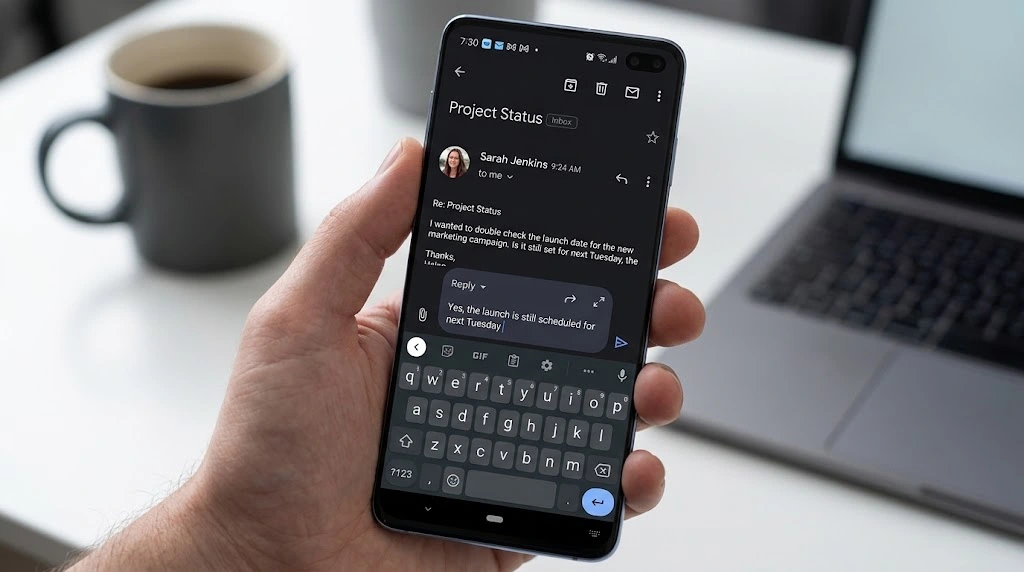
Replies are harder than fresh emails, because the right answer depends on the message you received.
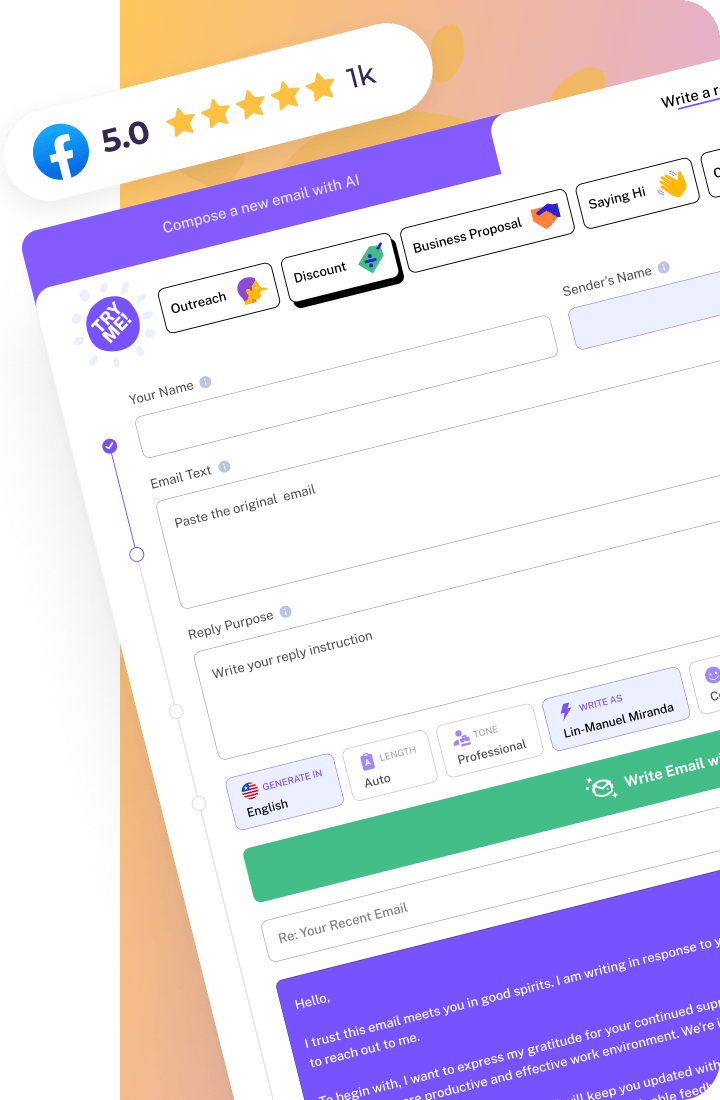
Writemail’s reply mode takes that message directly. You paste the email or the whole thread (up to 6,000 characters), add a short note on what you want to say, and it drafts the full reply. You supply key points, not a finished draft. If typing is the slow part, there is a microphone icon for voice input.
Picture three inbox moments.
A customer writes three angry paragraphs about being charged twice. A template apology says “we apologize for any inconvenience,” which is the exact sentence that makes an angry person angrier. With reply mode you paste the complaint, write “refund issued today, explain it takes 3 to 5 days to show, own the mistake,” and set the mood to Empathetic. The draft answers what the customer actually said.
A vendor misses a delivery for the second time. Your “Gentle follow-up” template is now the wrong tool. You want something firm and still professional, so you choose a Formal tone with an Urgent mood and list the dates they promised.
Someone on a long thread asks a question buried in the sixth message. Paste the thread, state your answer, and the reply refers to the right detail.
None of these needed a library of templates. They needed a tool that read the email first.
Friction: tab switching versus working in the inbox
Writemail works inside Gmail through a Chrome extension, a Firefox extension or a Google Workspace add-on. For Outlook there is an add-in, and macOS and Windows desktop apps exist too. With the extensions and add-ins you skip copy-paste entirely, because the draft lands where you’re writing. The website version hands off to your email client instead, so expect a small trip between tabs.
Gmail’s built-in templates have a real advantage here: they are already there, with nothing to install. The cost, as we saw, is that they stay on the desktop version of Gmail.
One more fact worth stating plainly: Writemail drafts, and you send. It doesn’t send anything on its own.
Writemail.ai vs traditional email templates, side by side
| WRITEMAIL.AI | TRADITIONAL EMAIL TEMPLATE | |
| Time to first draft | A few key points in, a full draft out | Quick only if the right template exists, then editing |
| Replying to an incoming email | Reads the pasted email (up to 6,000 characters) and drafts the reply | Can’t read it; you adapt by hand |
| Personalization and tone | Length, style, tone, mood and emoji presets; 30+ languages | Whatever you saved; rewrite per person |
| Setup and upkeep | Nothing to build before the first email | Write, name, sort and update every template |
| Finding the right one | Describe the email; no list to browse | Scroll or search your saved list |
| Where it works | Gmail and Outlook add-ins, desktop apps, website | Gmail templates: Gmail on a computer only |
| Cost | Free for 5 emails a month, paid plans from $6.95 | Free, built into your email |
| Best for | Replies, context-heavy and tone-sensitive emails | Fixed, word-for-word messages and policy text |
What the research says about AI drafting
No study has tested Writemail specifically, but there is solid evidence on AI drafting in general.
MIT News reported on a Science study by Shakked Noy and Whitney Zhang. 453 professionals did writing tasks, emails among them. Those who used ChatGPT “decreased the time it took workers to complete the tasks by 40 percent, and output quality, as measured by independent evaluators, rose by 18 percent.” In plain terms, users “finished tasks 11 minutes faster.”
That tells you AI drafting can be a real time saver for professional writing. It doesn’t tell you Writemail cuts your time by 40 percent. Your own mix of emails will decide the number. The study also measured time and quality ratings from evaluators, not whether every fact in a draft was right.
The honest hybrid
You don’t have to throw out your templates. The sensible setup is small.
Keep three to five templates for the fixed text: the policy paragraph, the out-of-office, the application receipt. Use Writemail.ai for everything else.
The two also connect. Writemail’s generator has a “Choose a template” option, so a template can feed the AI instead of competing with it. Writemail describes this as combining “the efficiency of templates with dynamic personalization.” That’s why “AI email templates” is a fair way to think about it: templates that adapt to the email in front of you. More on that on Writemail’s template page, and in an earlier piece on AI email writing versus writing emails yourself.
Limits you should know about
Review every draft before it goes out. The AI writes from the key points you give it, so if a date, an amount or a name is wrong in your note, it will be wrong in the email. A wrong date sent to a client costs more than the minute you saved.
Plans matter too. The free plan covers 5 AI emails a month with no credit card, which is enough to test the idea on a few real messages but not enough to run your inbox on. Regular is $6.95 a month for 50 emails, Basic is $11.95 for 150, and Pro is $19.95 for 500. Custom has no cap, and you contact sales for it. Annual billing takes 20 percent off. If you use every email in a plan, that works out to roughly 14 cents each on Regular and about 4 cents each on Pro.
The Smart Mail Assistant, email history and custom tone values are on paid plans only. The free plan uses the standard presets.
FAQ
Do AI email templates replace saved templates?
- For most emails, yes. For fixed wording, no. A saved template guarantees identical text, and an AI writer by design does not. Keep both and use each where it fits.
Does Writemail.ai work with Gmail and Outlook?
- Yes. Gmail has a Chrome extension, a Firefox extension and a Google Workspace add-on. Outlook has an add-in. If you use the website instead, it passes the draft to your email client.
Will an AI draft get more replies than a template?
- We couldn’t find a study that shows it either way, so we won’t promise it. The claim here is about your time, not your reply rate.
Can it write in other languages?
- It writes in 30+ languages, and the output language can differ from the language you typed in.
Next step: test it on one real email
Pick the next message in your inbox that a template would only half answer. Paste it into reply mode, add two lines of what you want to say, and compare the clock to your usual route.
The free plan gives you five emails to run that test, no credit card needed. Start free with Writemail.ai.